How MailVault archives mail, what archiving then deleting does to the server copy, when automatic backups run, and how to export and re-import your vault.
How does MailVault back up emails?
MailVault connects to your email server over IMAP, Microsoft Graph for personal Outlook.com accounts, or JMAP. To retain mail, explicitly archive the messages you need or run a manual backup with All emails (download from server). In the default Maildir storage format, saved messages are standard .eml files in Maildir folders on your computer, readable by apps that support EML. Optional JMAP storage keeps the original bytes with JSON records and deduplicates identical messages. Before deleting server copies, open the archived messages and attachments, confirm the expected folders and date range are present, and verify a second copy in a separate backup location. A message appearing in the inbox or cache does not prove it has been archived.
Archiving downloads the full email from your server (if not already cached) and stores it as a .eml file on disk with the A (Archived) flag in the filename. If the email was already cached locally, MailVault marks the existing local message as archived. Archived emails appear under the Vault view and are included in backups. The server copy is untouched until you delete it yourself.
What happens when I archive and delete from server?
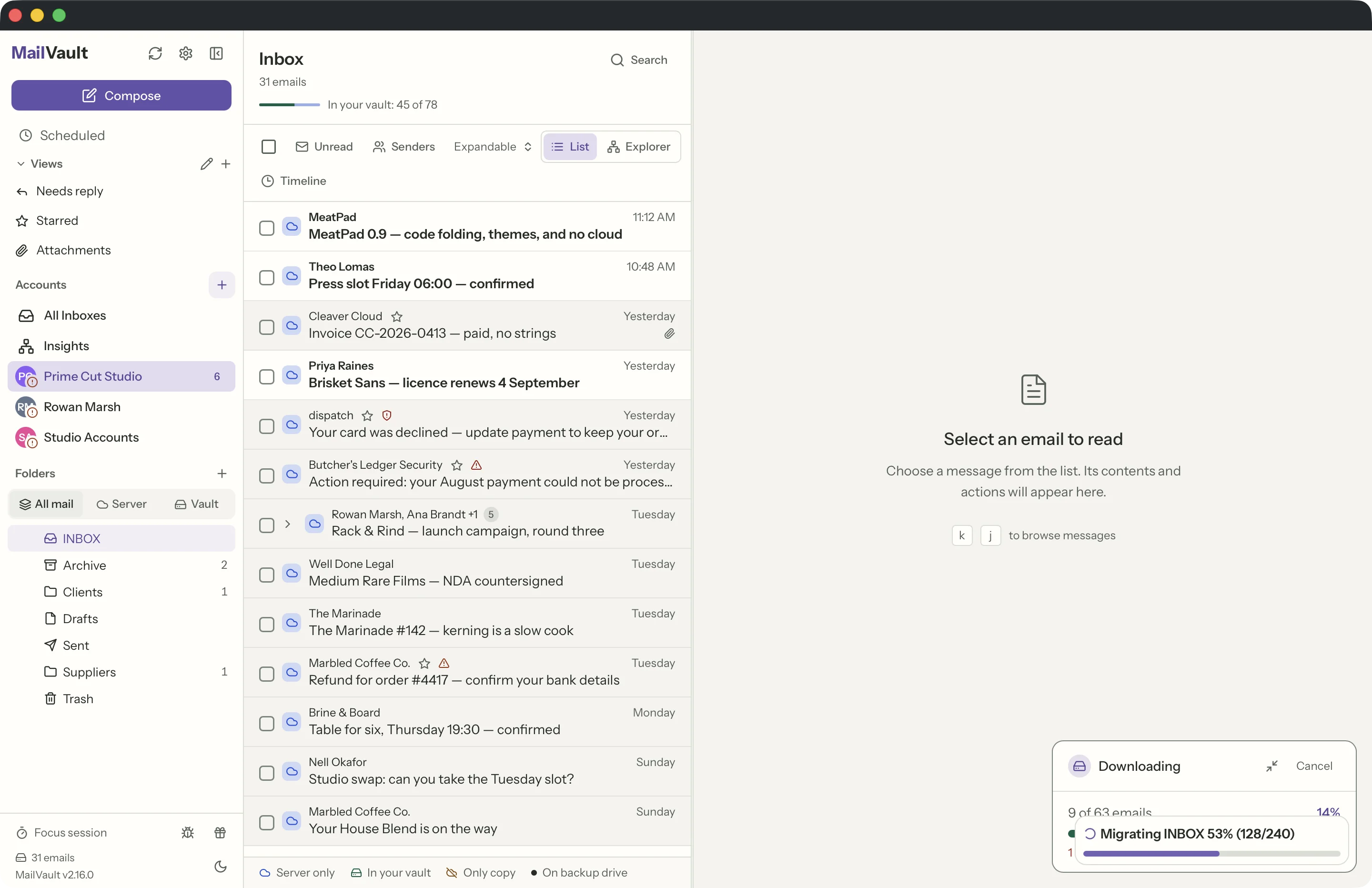
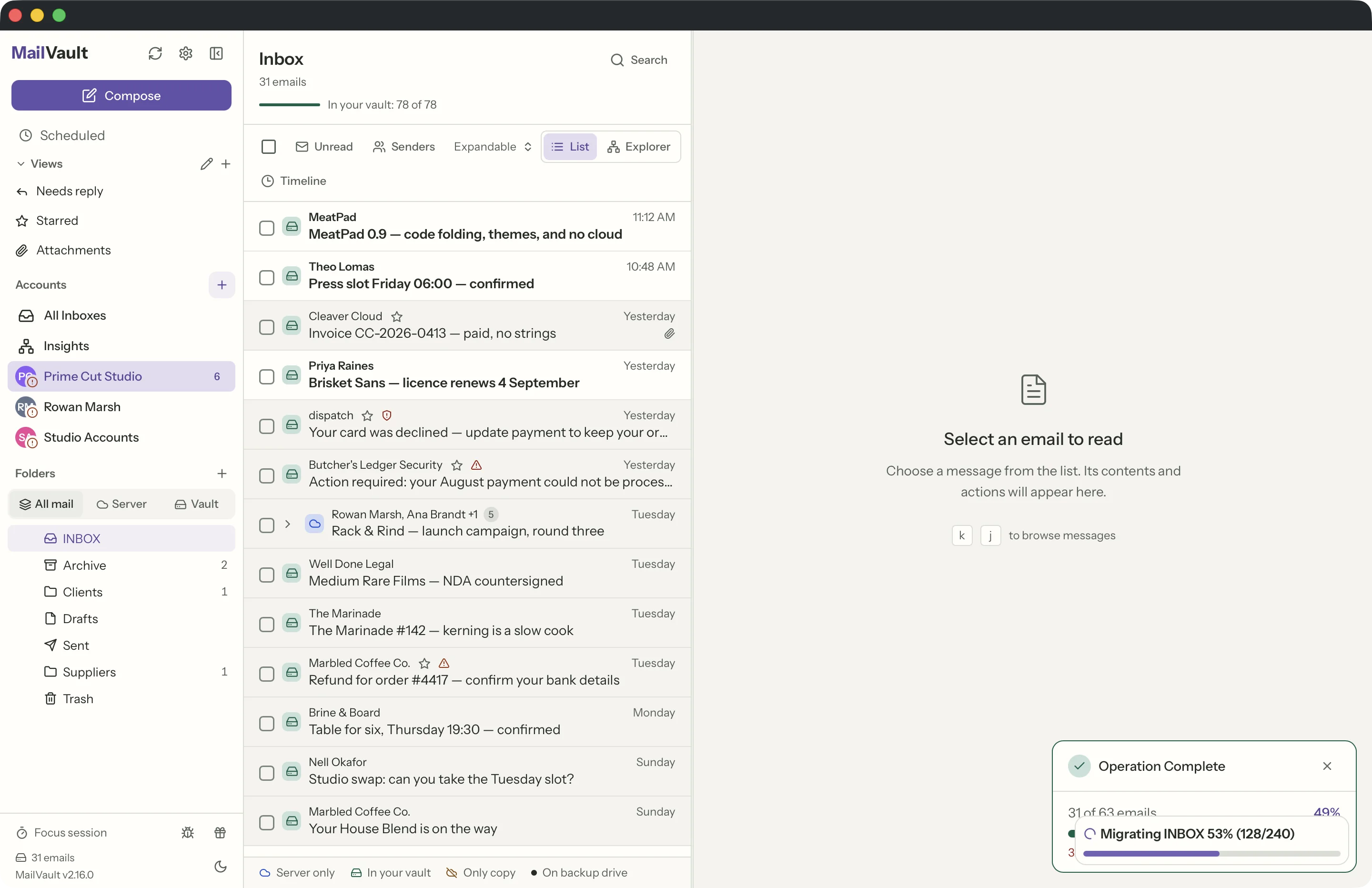
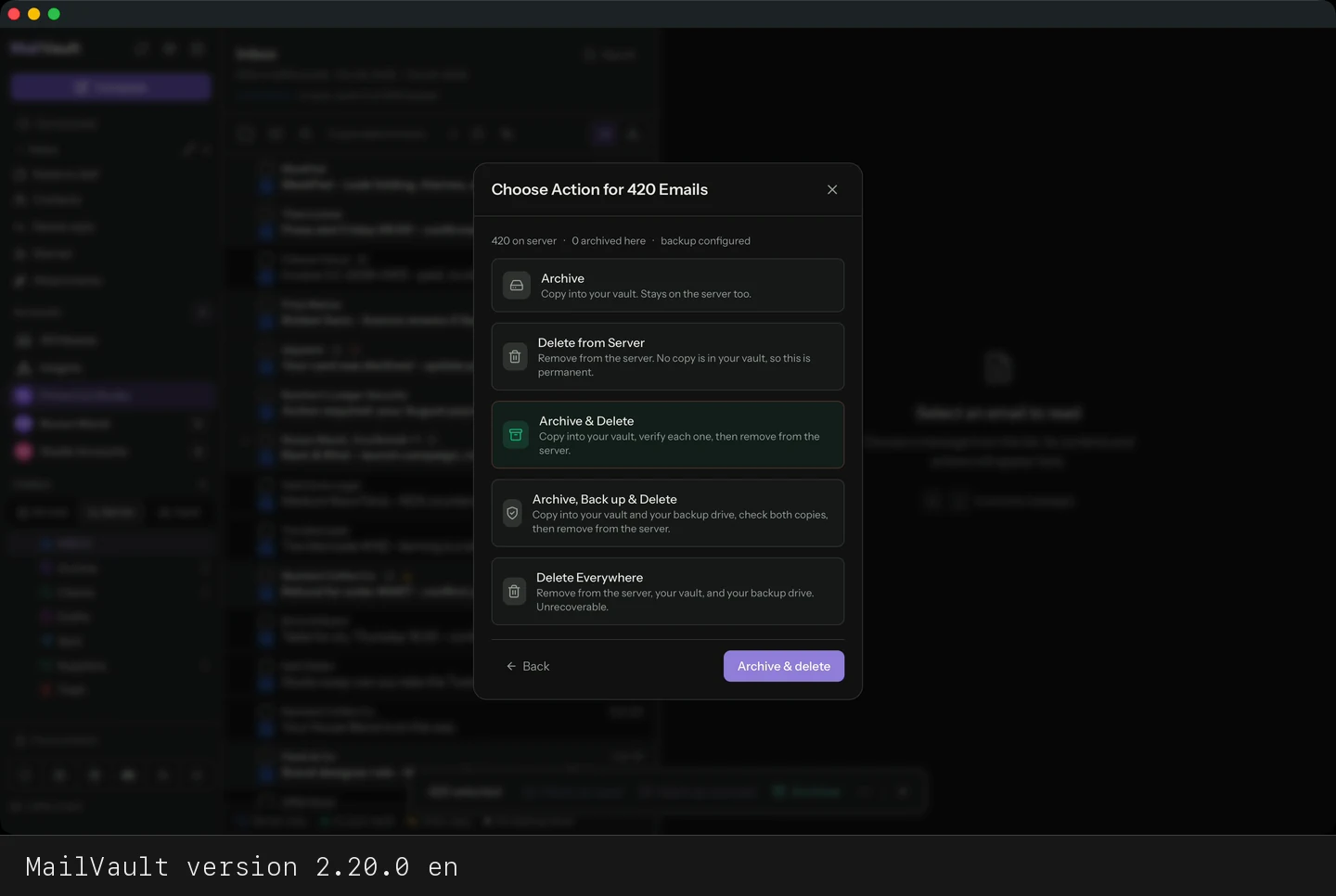
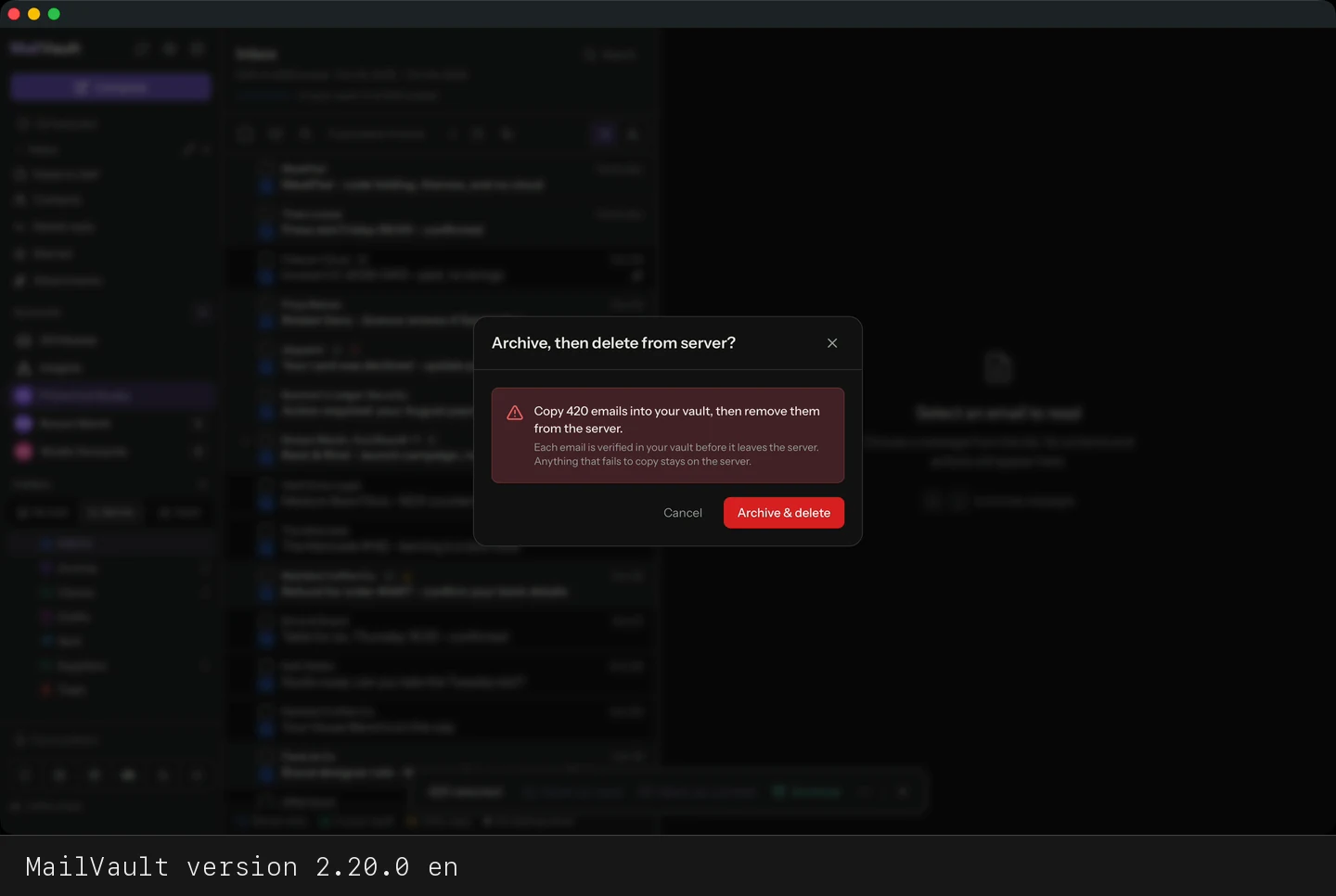
Archive & Delete, a Premium feature, runs three steps in order: it copies the message into your vault as an .eml file, checks that the copy is really there, and only then deletes it from the server. Anything that fails the check stays on the server — a failed copy never costs you the original. Afterwards the row shows your only copy: the vault is the one place that message still exists, which is also the cue to keep a backup drive attached.
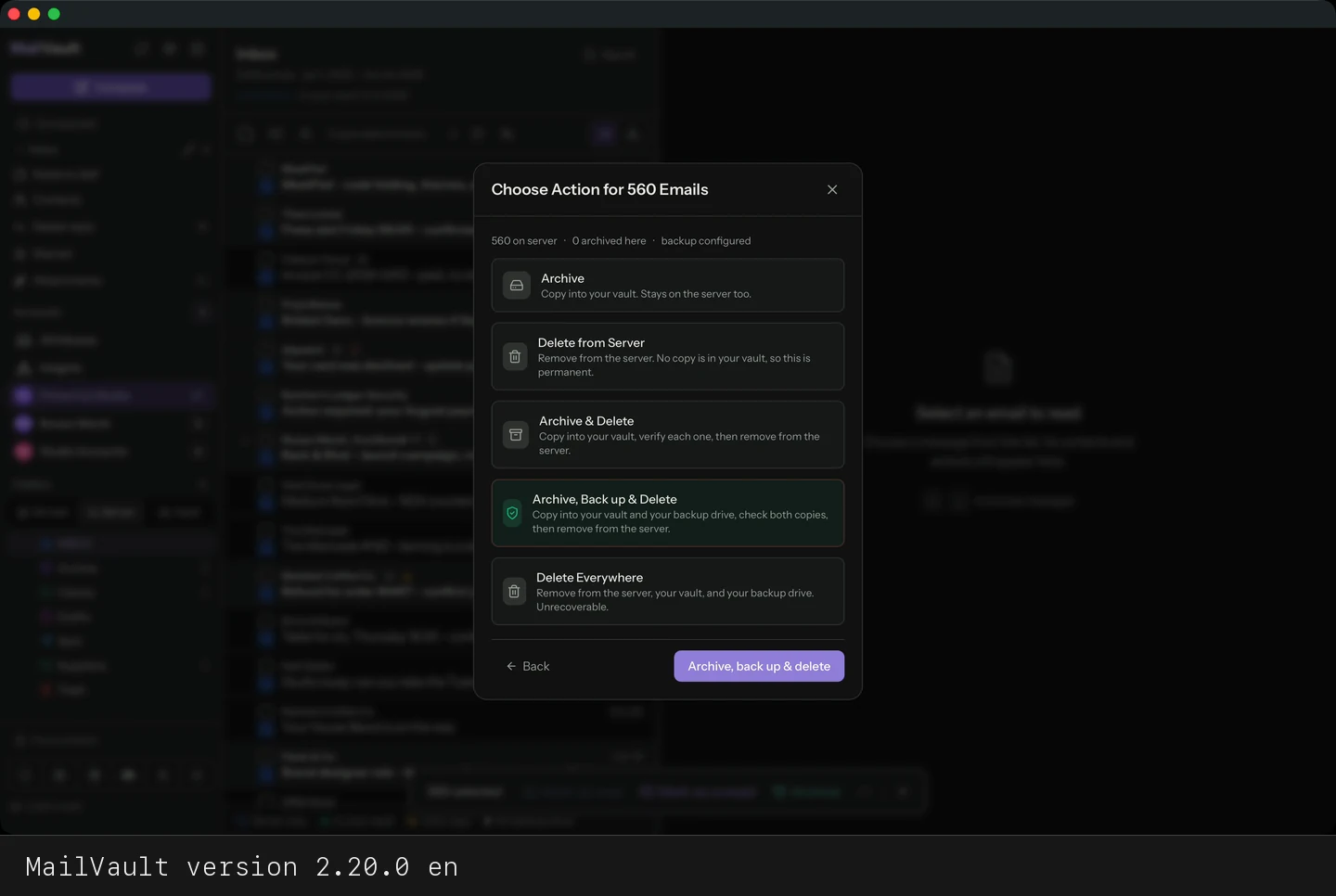
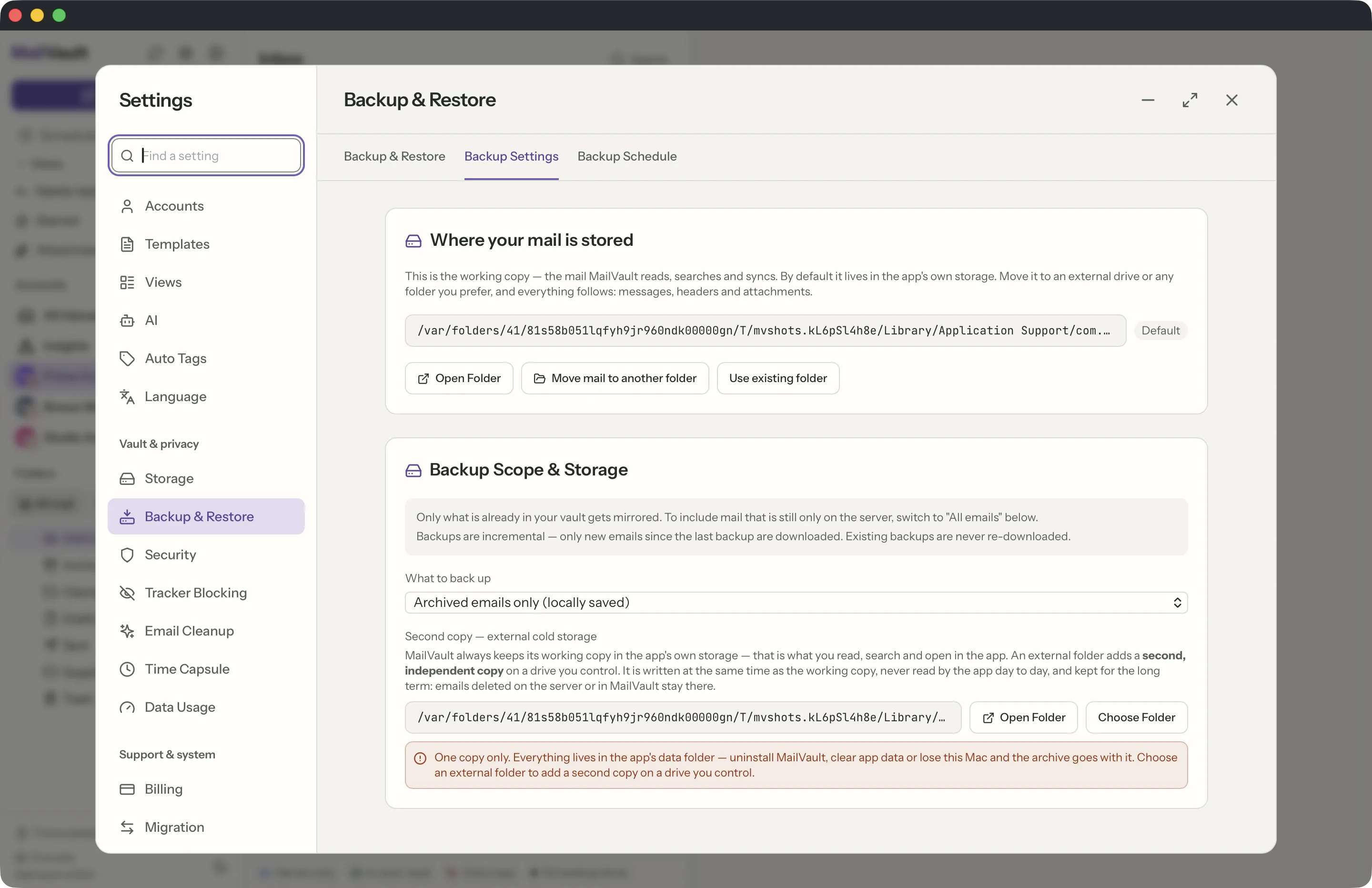
Archive, Back up & Delete, also Premium, adds a second copy: it copies each message to your backup folder as well, checks both copies, and removes from the server only what both confirm. It needs a backup folder chosen first. If the drive cannot be reached, or a copy does not match, nothing is deleted for those messages and the result tells you how many stayed on the server.
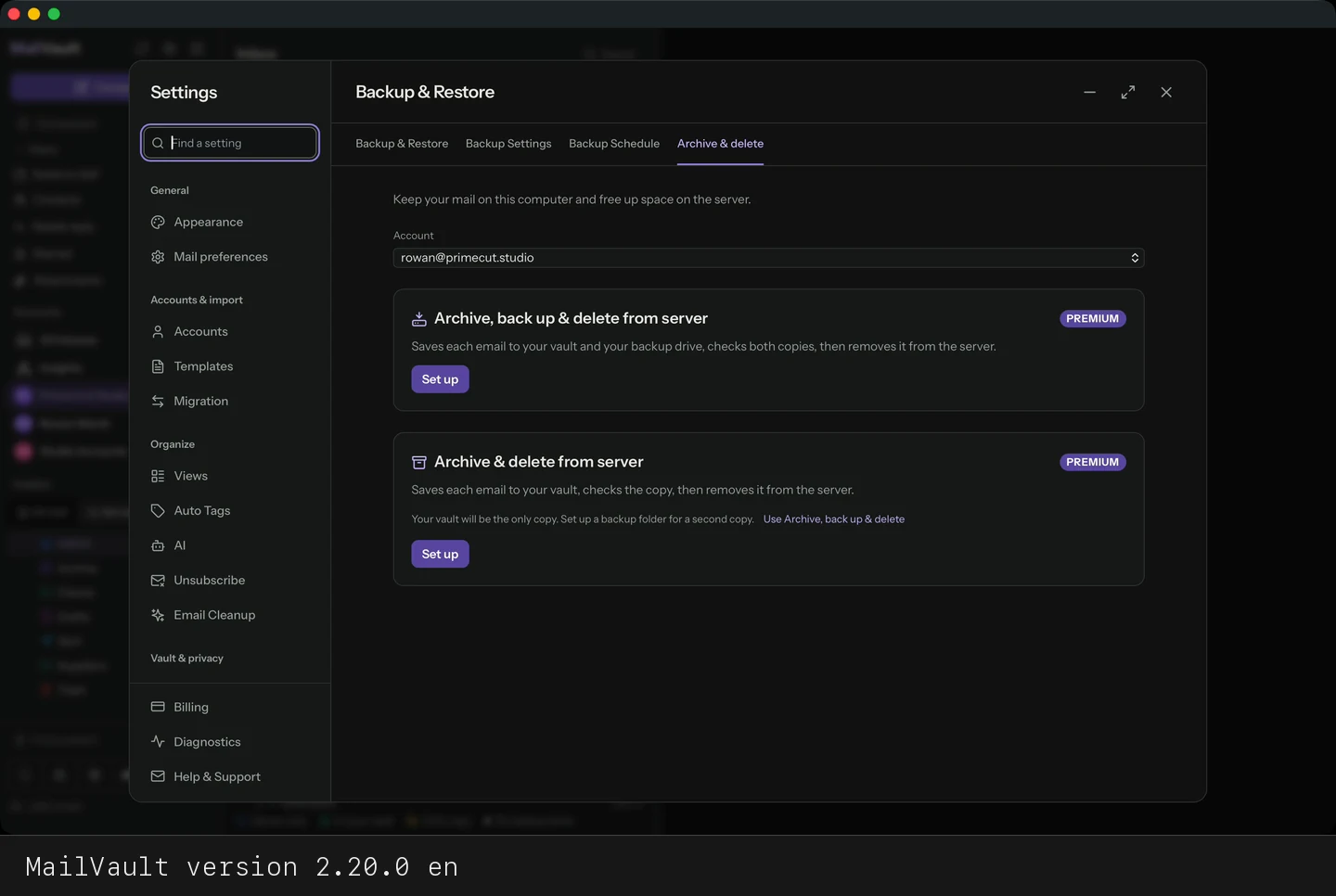
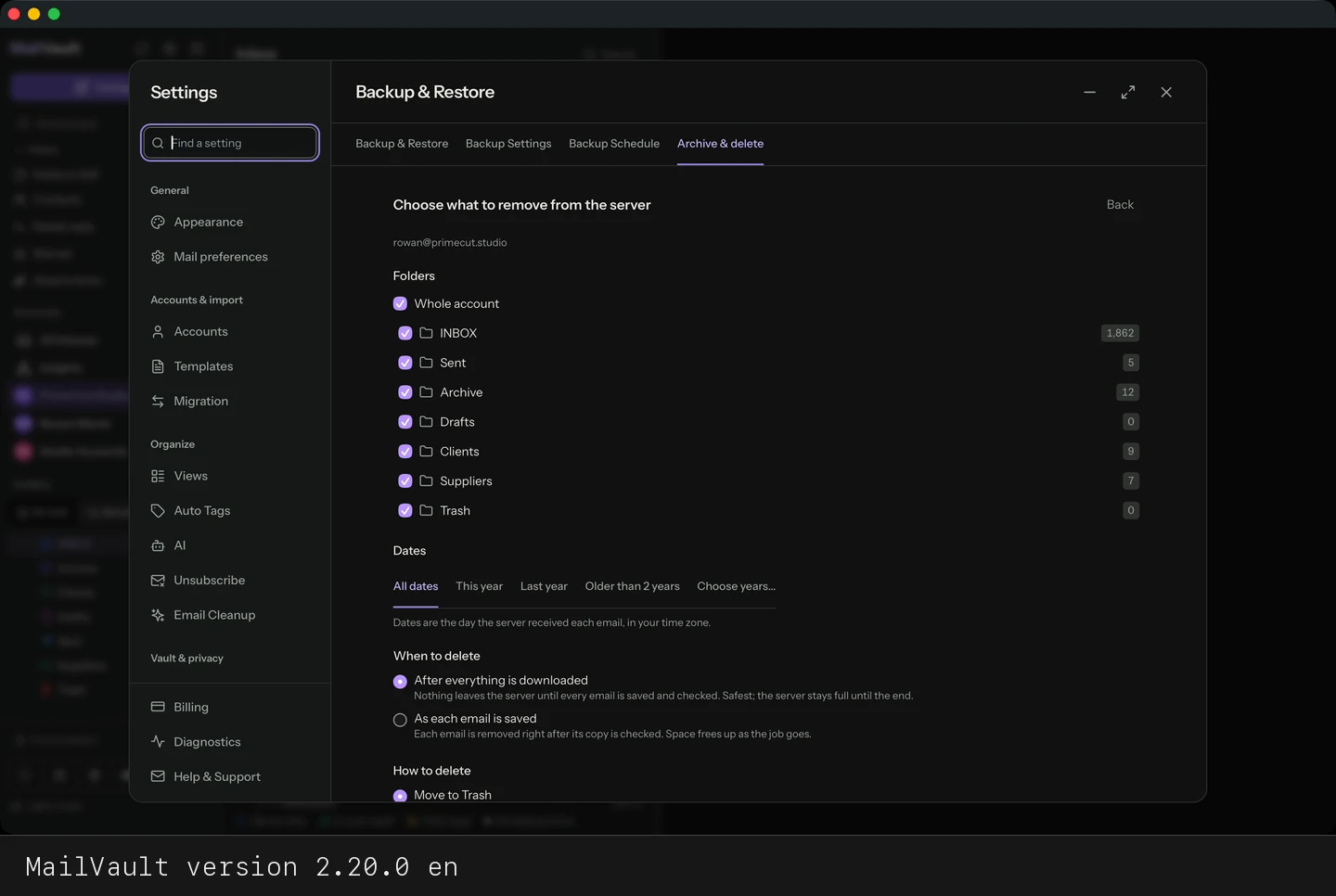
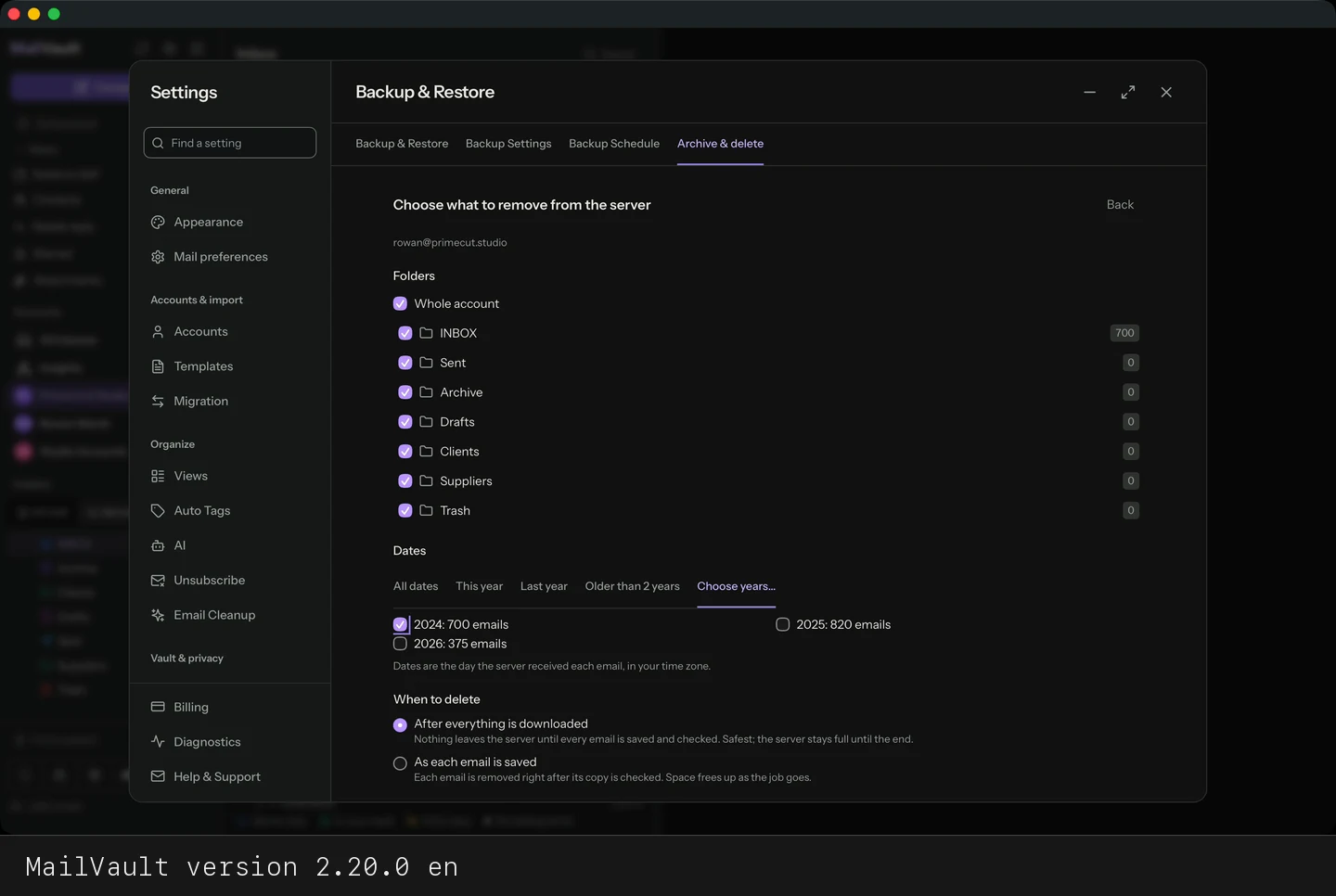
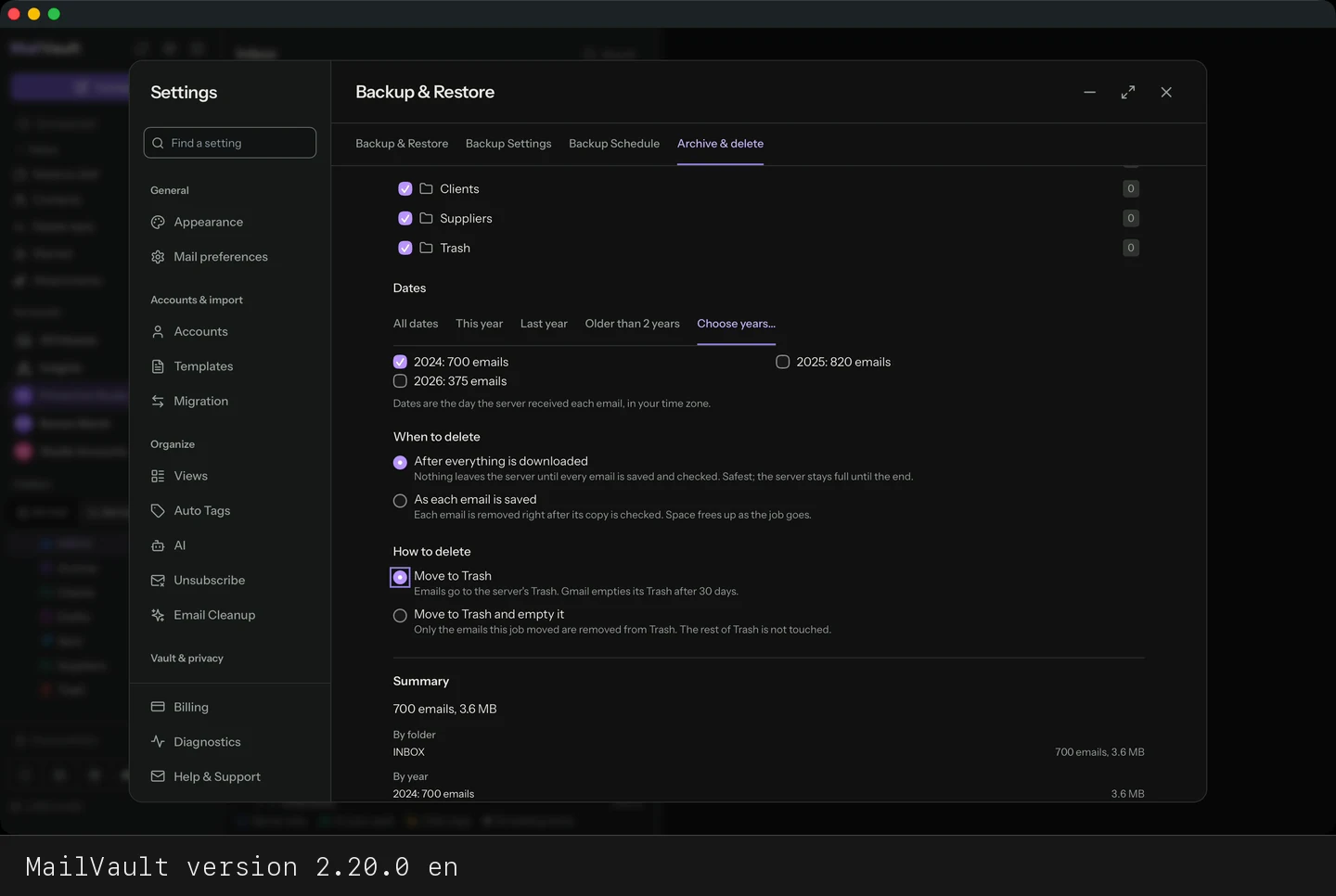
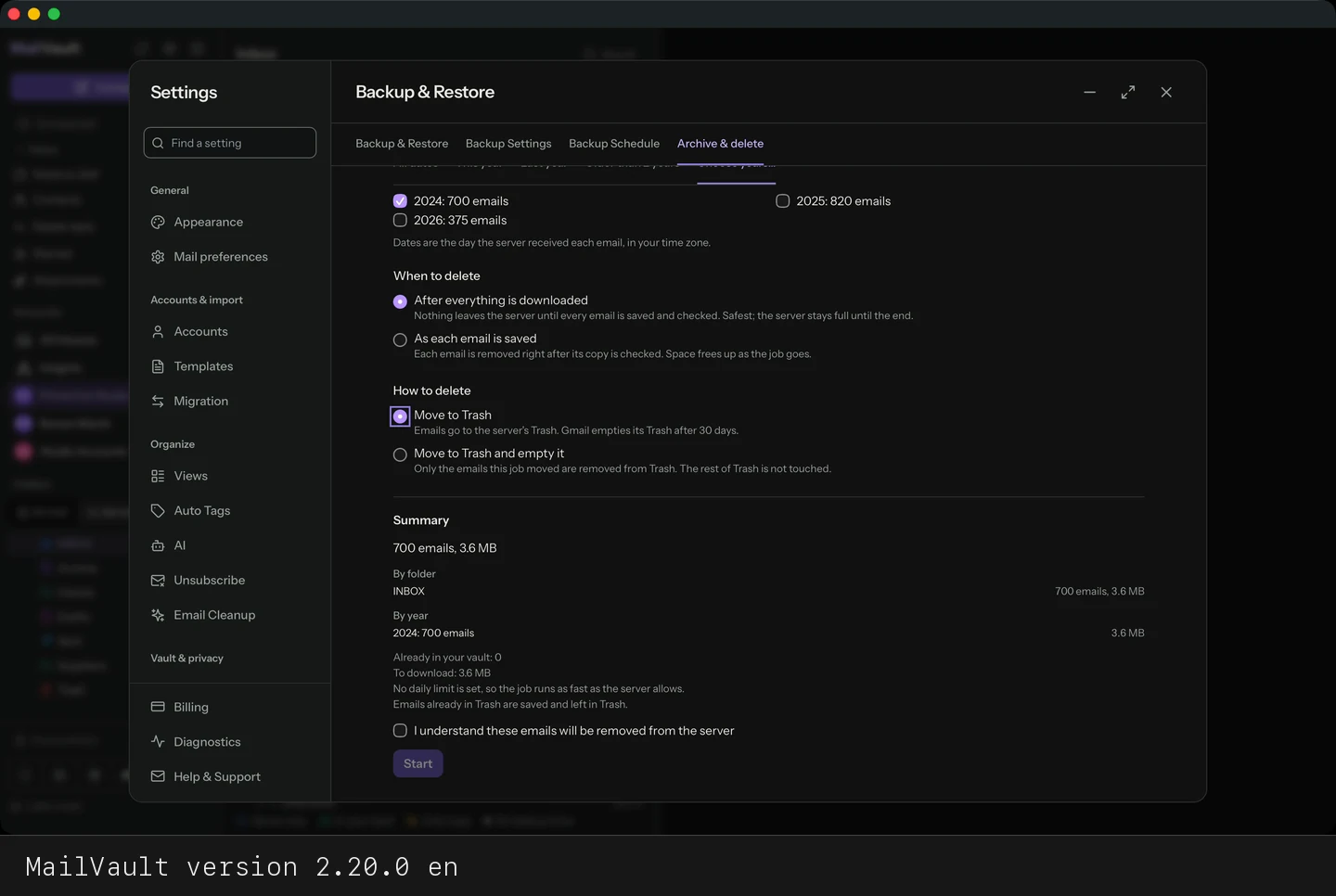
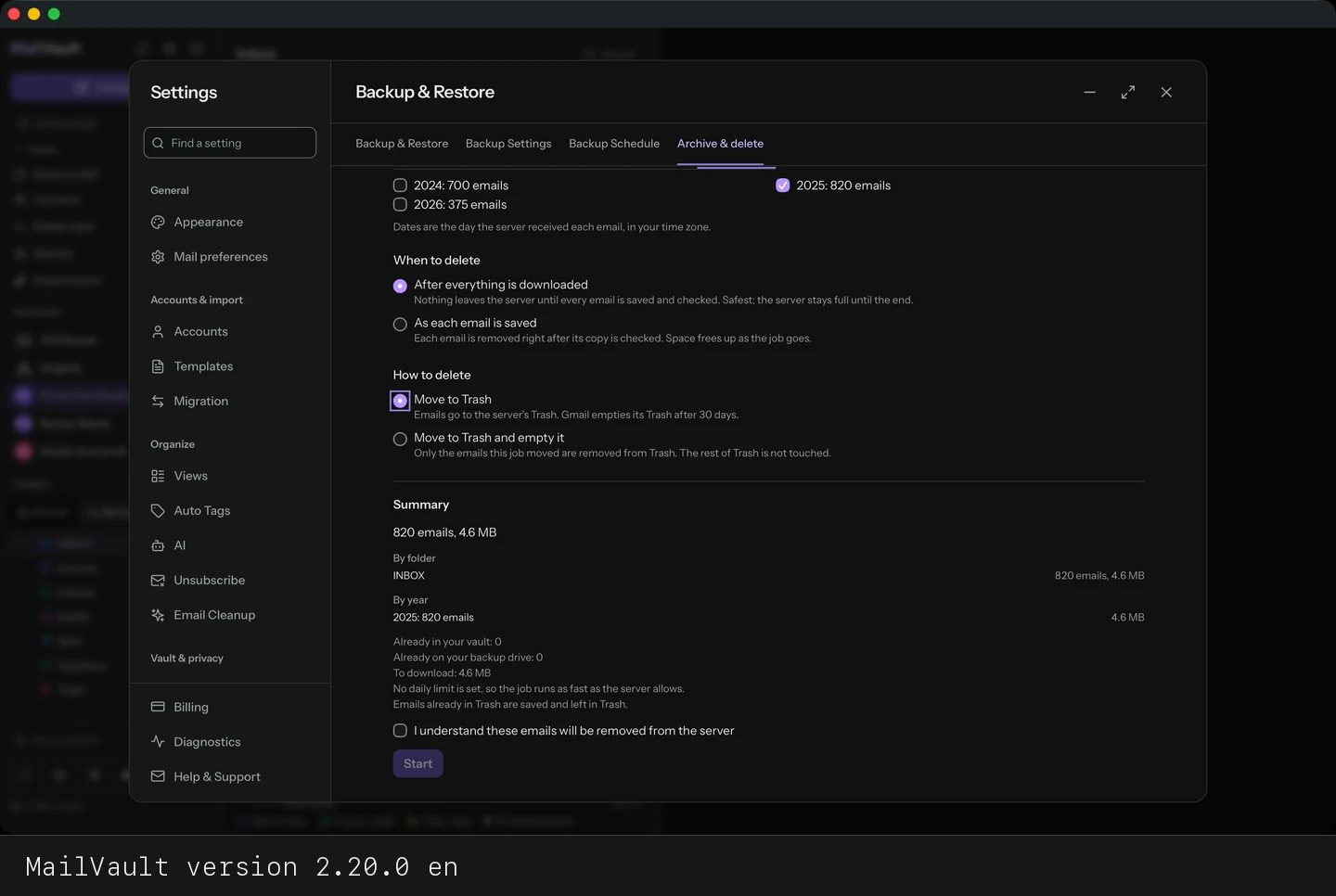
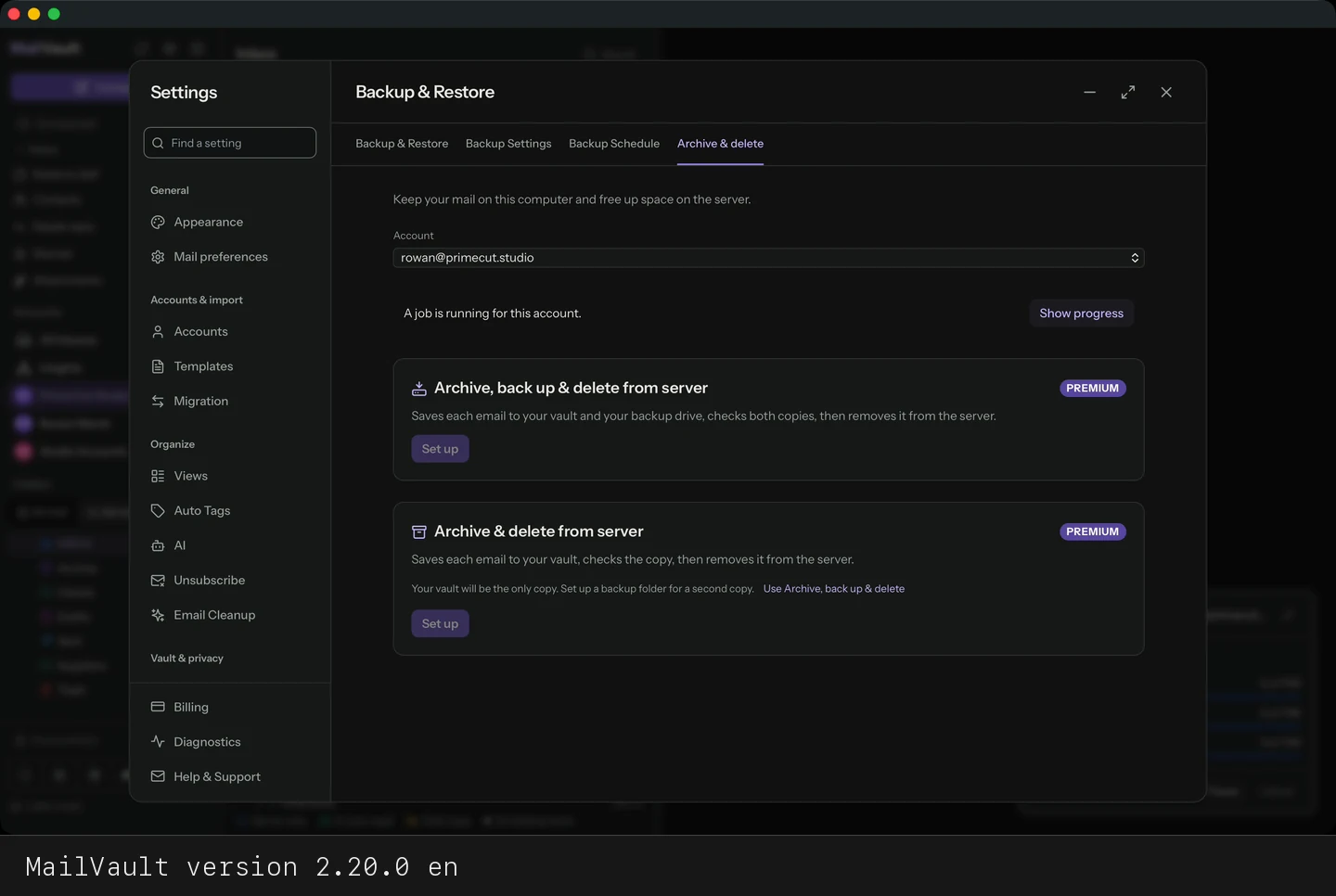
Two jobs in Settings → Backup & Restore → Archive & delete, both Premium, do the same for a whole account instead of selected messages. Archive, back up & delete from server saves the mail you scope to your vault and your backup folder, and Archive & delete from server saves it to your vault only. You choose the folders and the dates (all dates, this year, last year, older than 2 years, or the years you pick), whether to delete after everything is saved or as each email is saved, and whether to move to Trash or move to Trash and empty it, and a summary shows what will be removed before you confirm. Every copy is checked before an email is removed, the job keeps running in the background and after a restart, and it waits for your daily download limit or for Gmail’s own limits instead of failing.
What happens if I delete emails from the server?
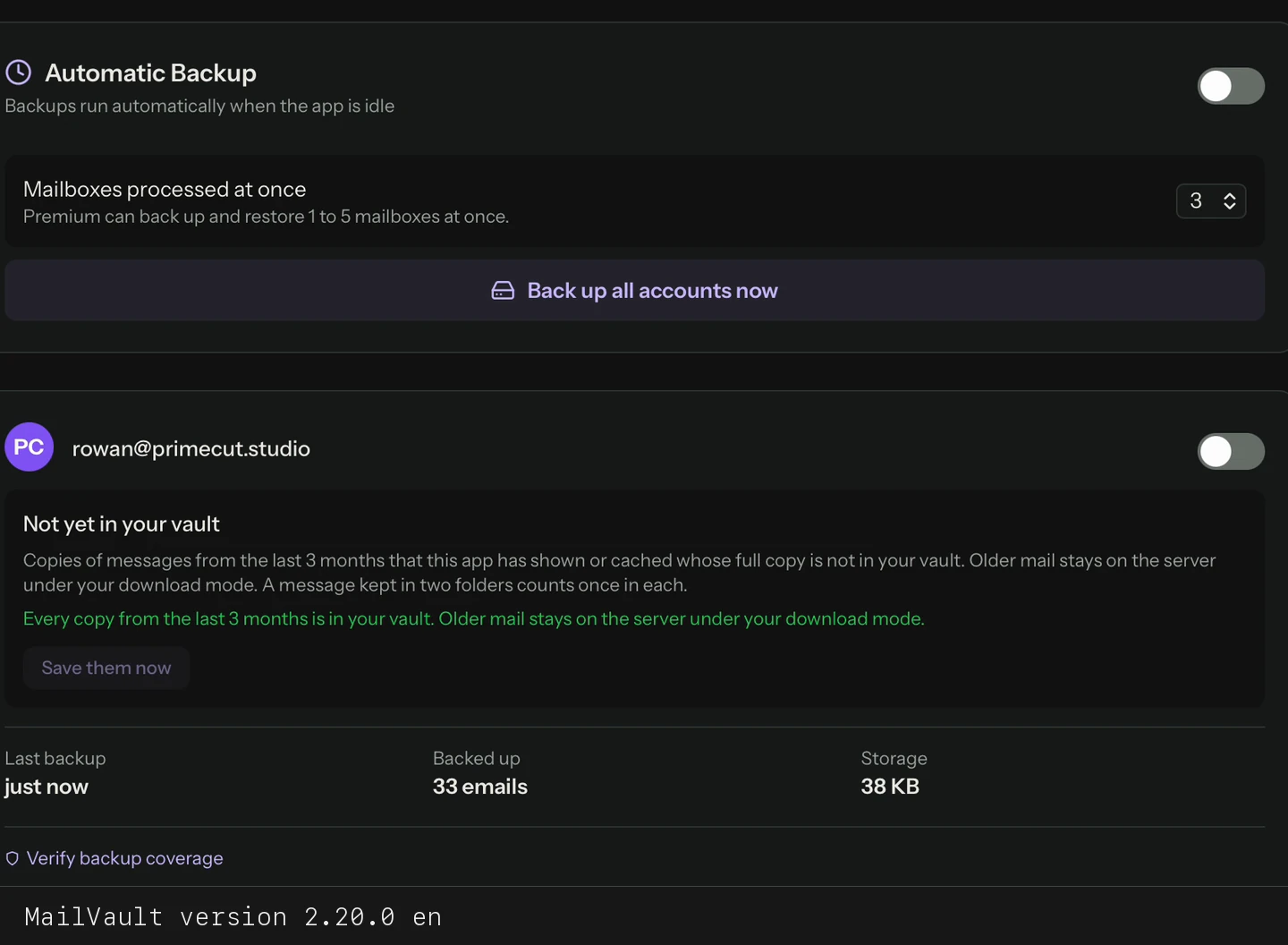
Anything you archived first stays in your vault, untouched by what the server does afterwards — that is the whole point of the product. Anything you did not archive is gone with the server copy, so MailVault shows the state of every message on its own row before you delete: on the server, in your vault, or both. The safe route is Archive & Delete (Premium), which copies each message into your vault and verifies it there before removing it from the server.
How do I archive and delete selected emails from the server?
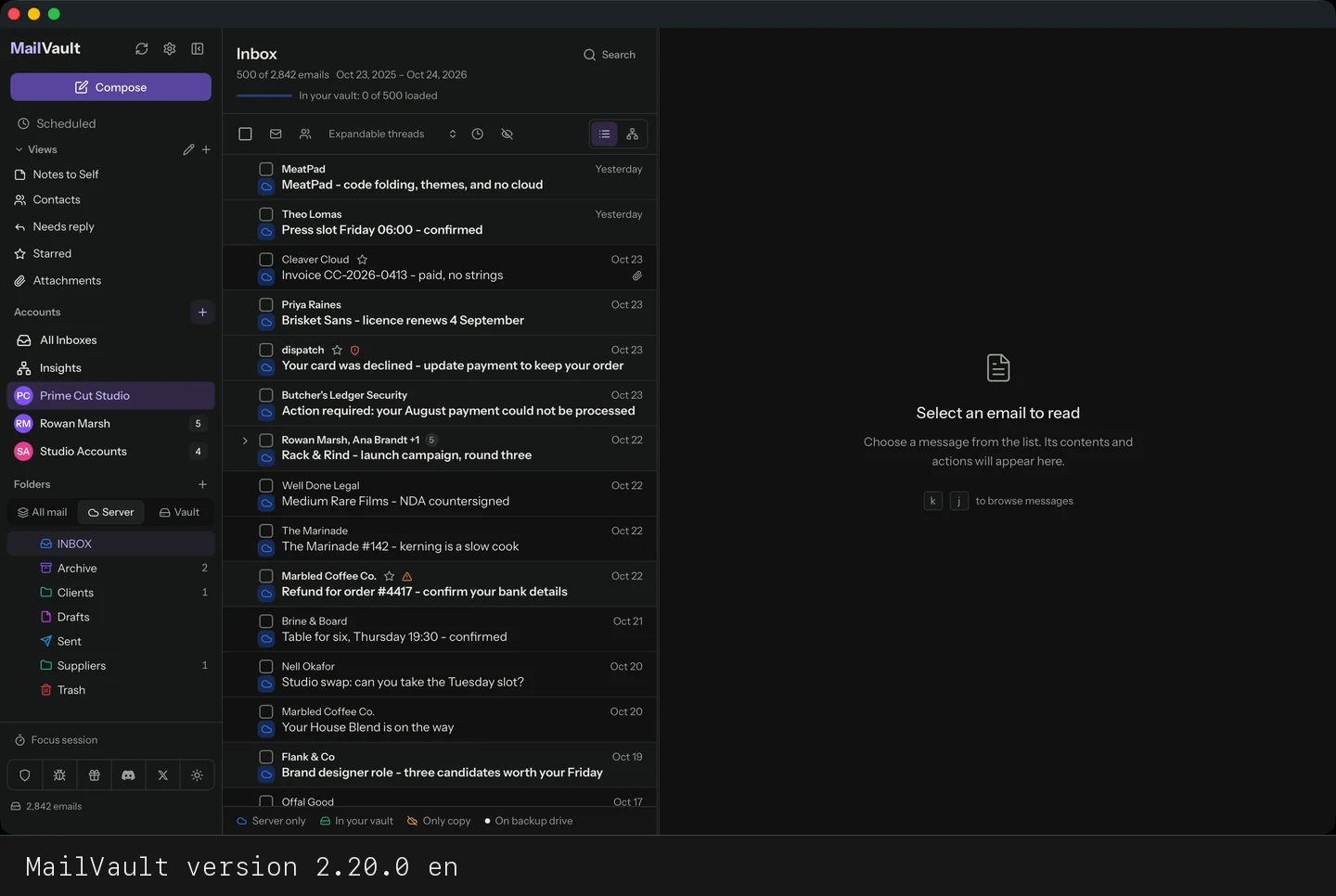
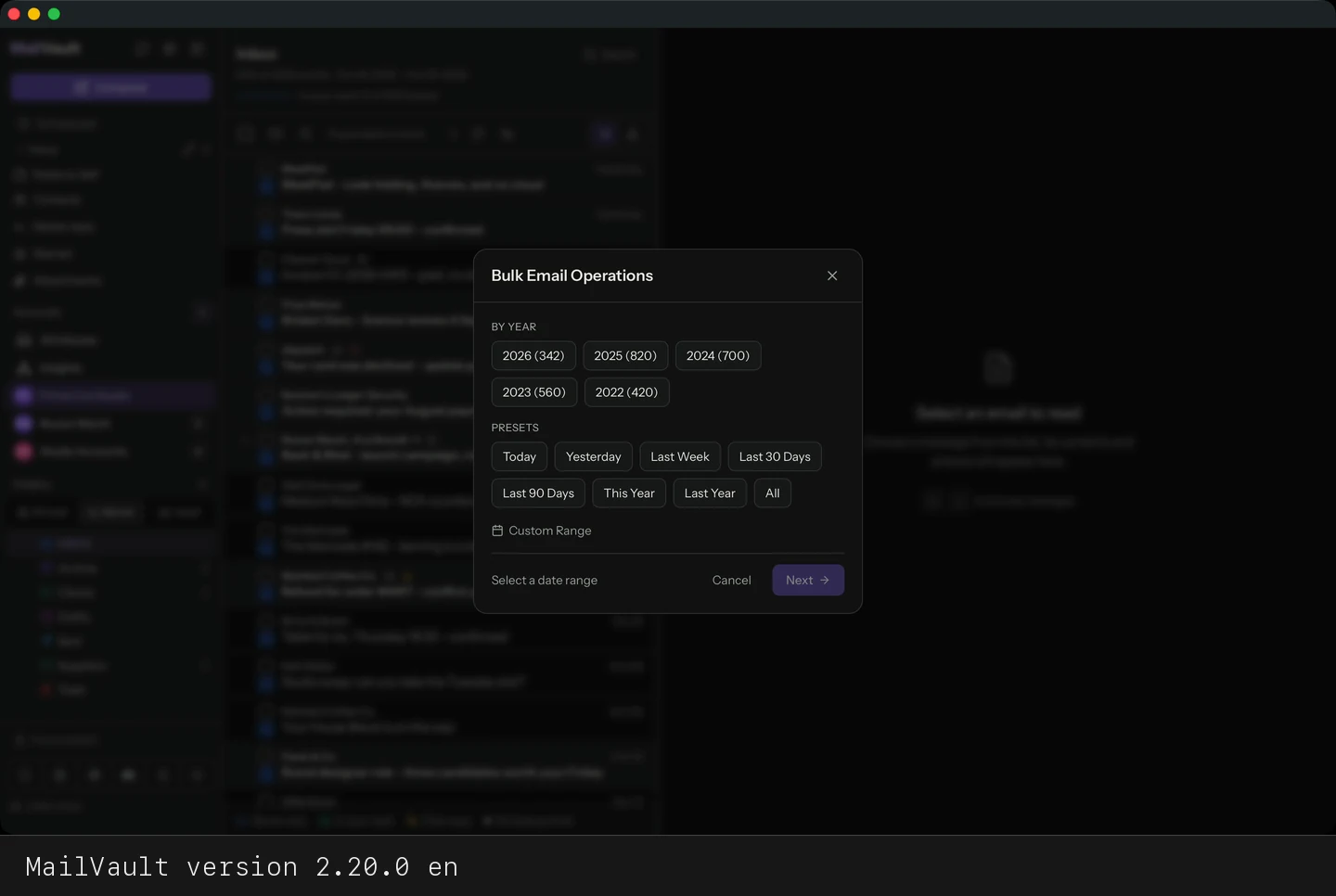
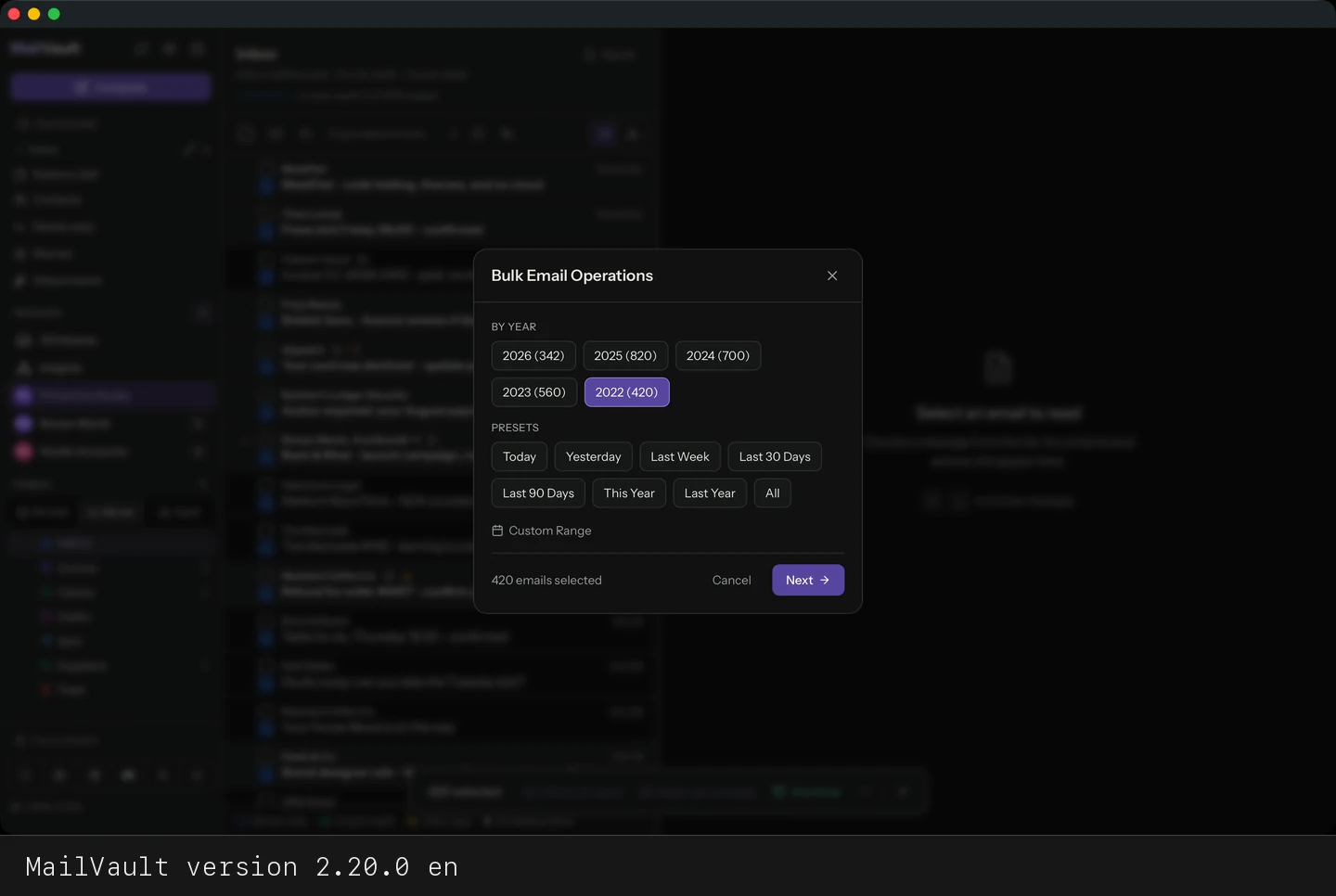
Use Bulk Email Operations when you want to clear a hand-picked slice of one account: a year, a date range or a group you selected. Open the Server view, choose Select messages…, pick a year, press Next and choose an action. Both routes below are Premium, and both check every copy before anything leaves the server.
Archive & Delete copies each email into your vault, verifies it there, then removes it from the server. Your vault holds the only copy afterwards.
Archive, Back up & Delete also copies each email to your backup folder and checks both copies before removing it from the server. It stays greyed out with “Choose a backup folder first” until a backup folder is set in Settings → Backup & Restore → Backup Settings.
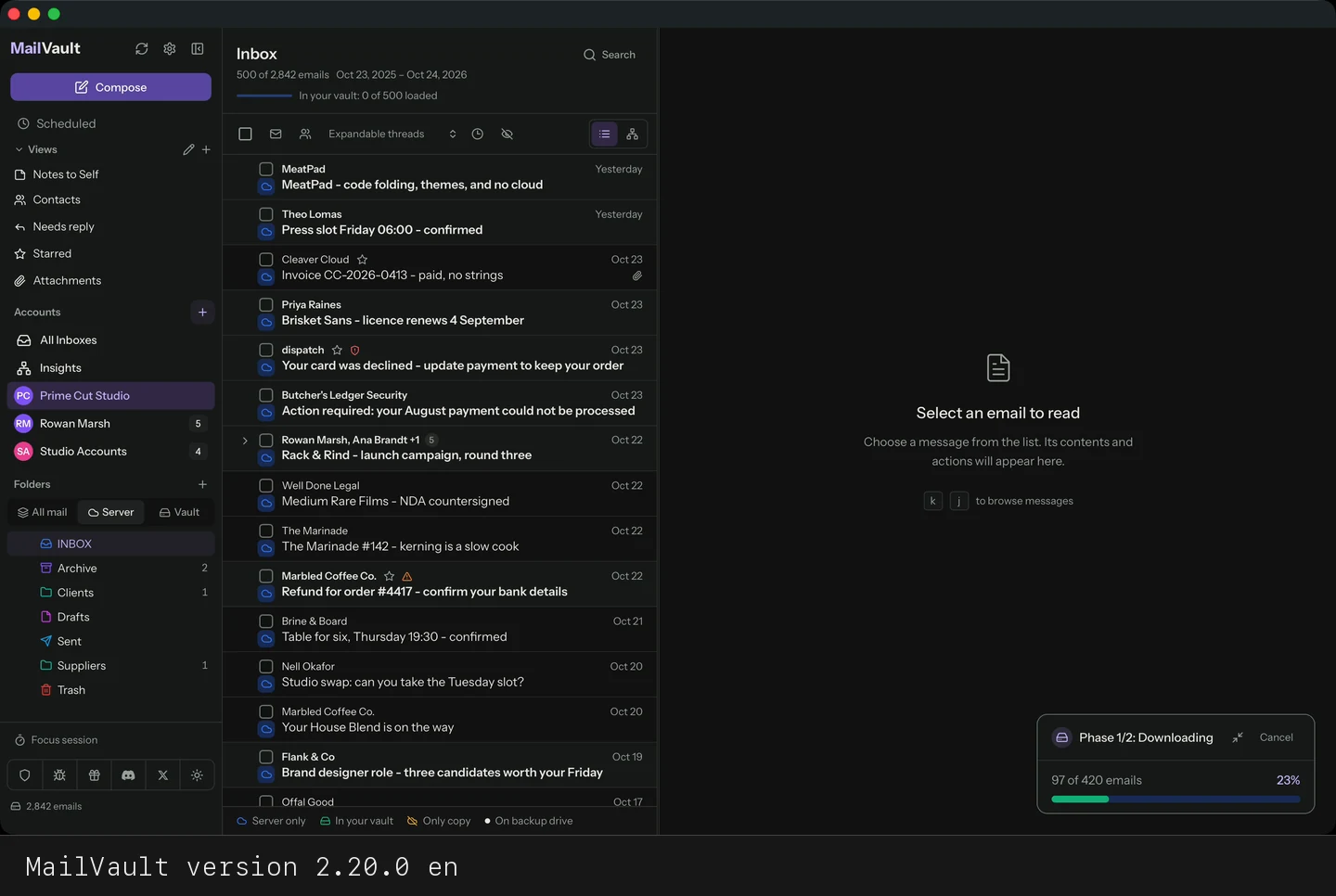
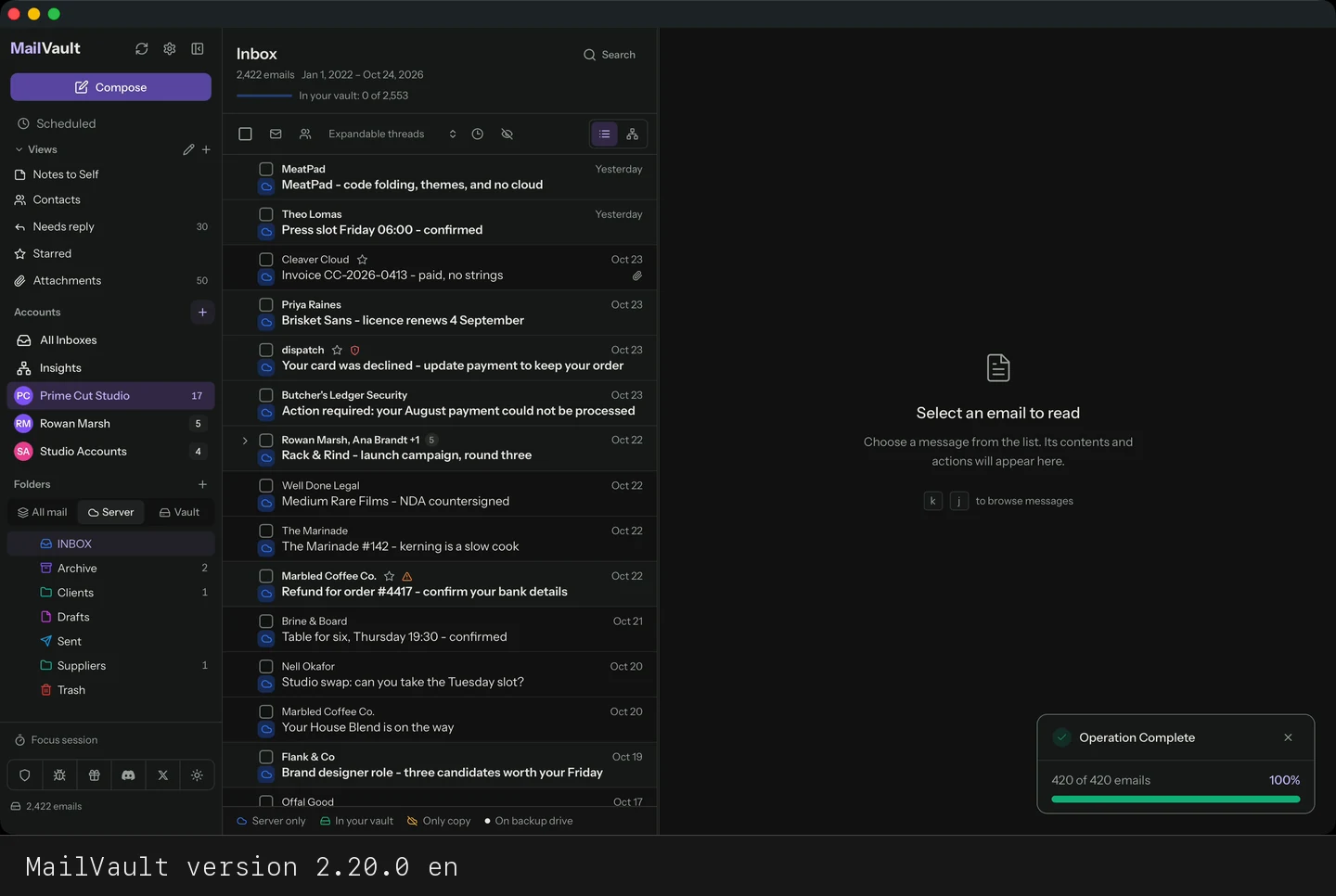
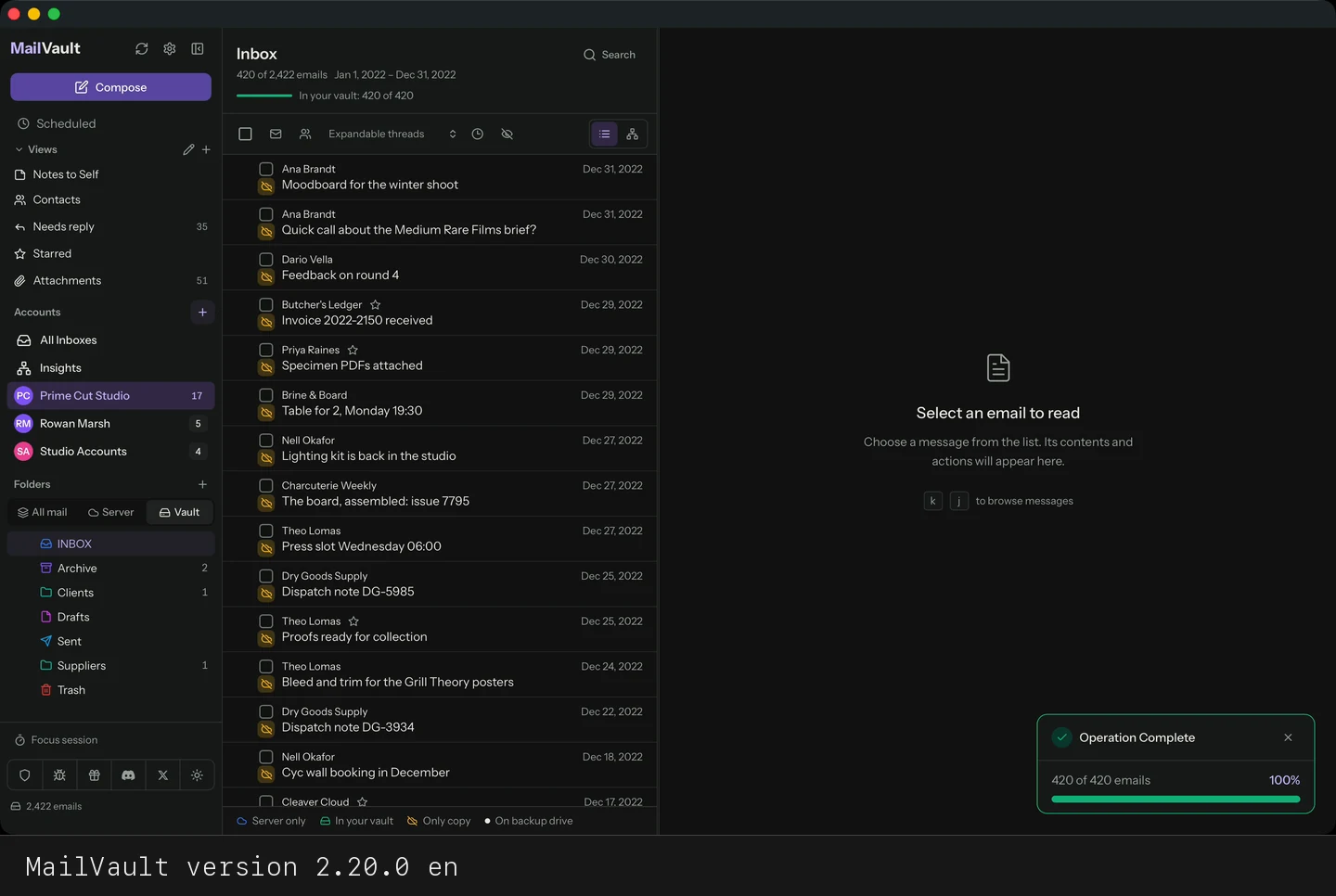
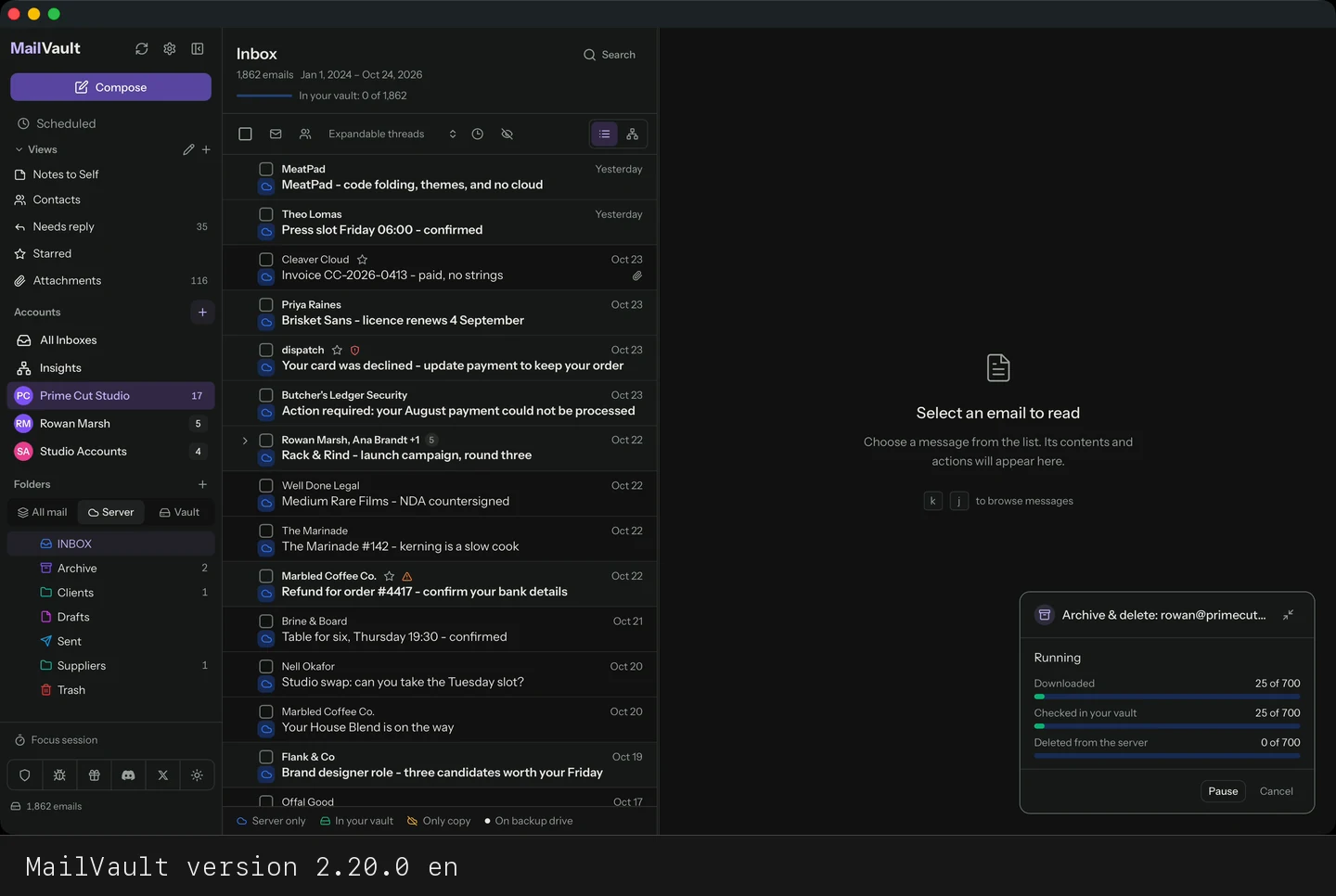
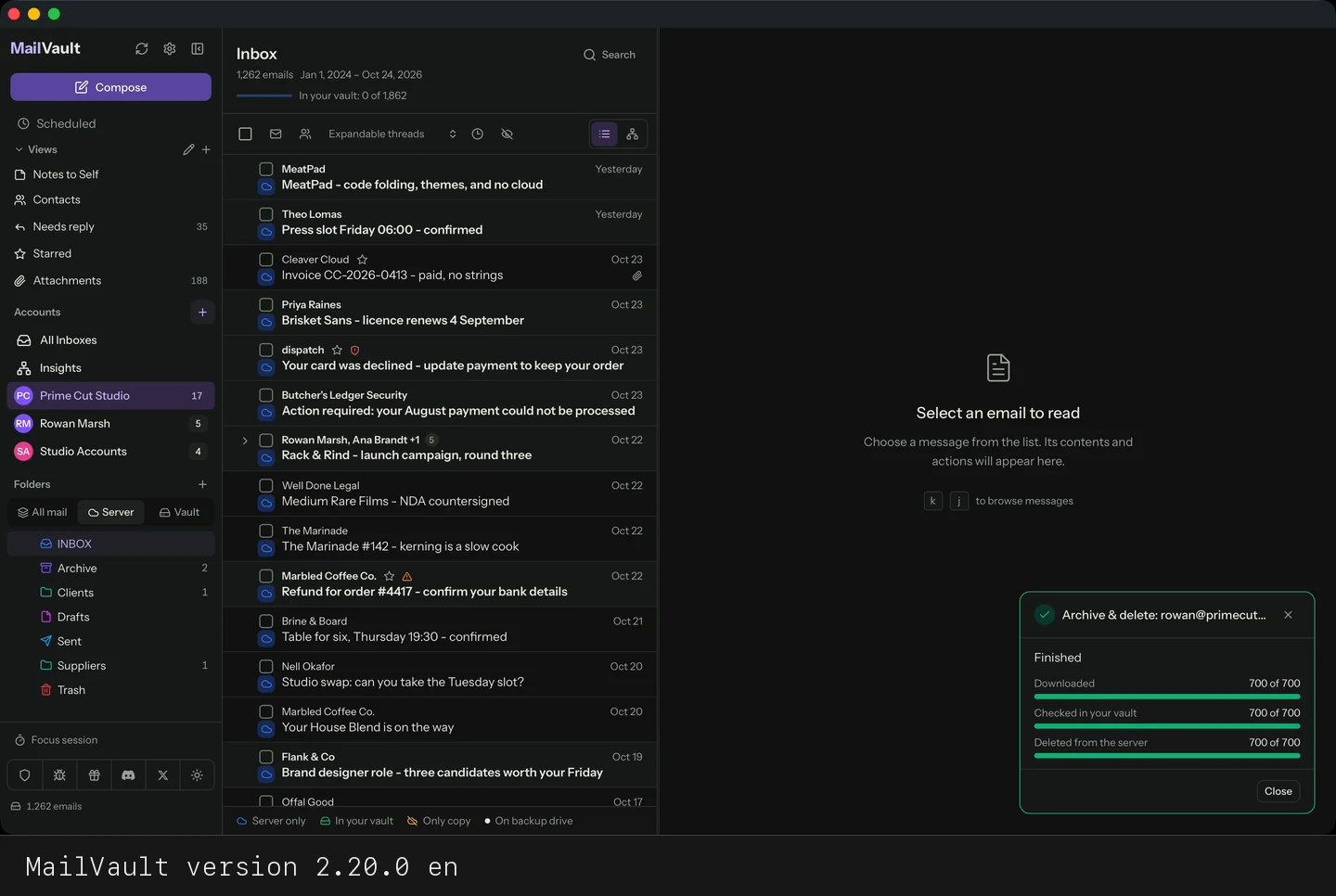
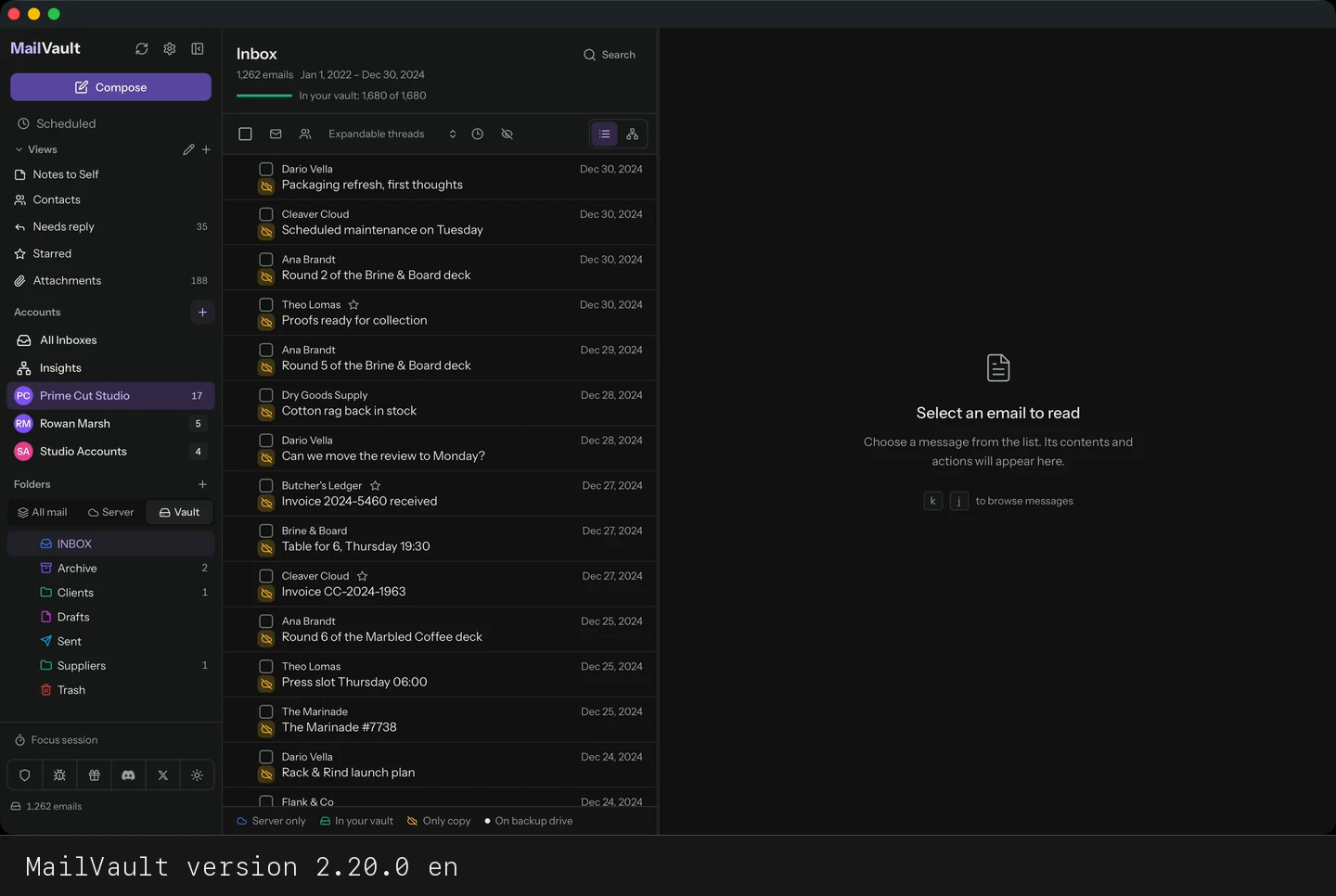
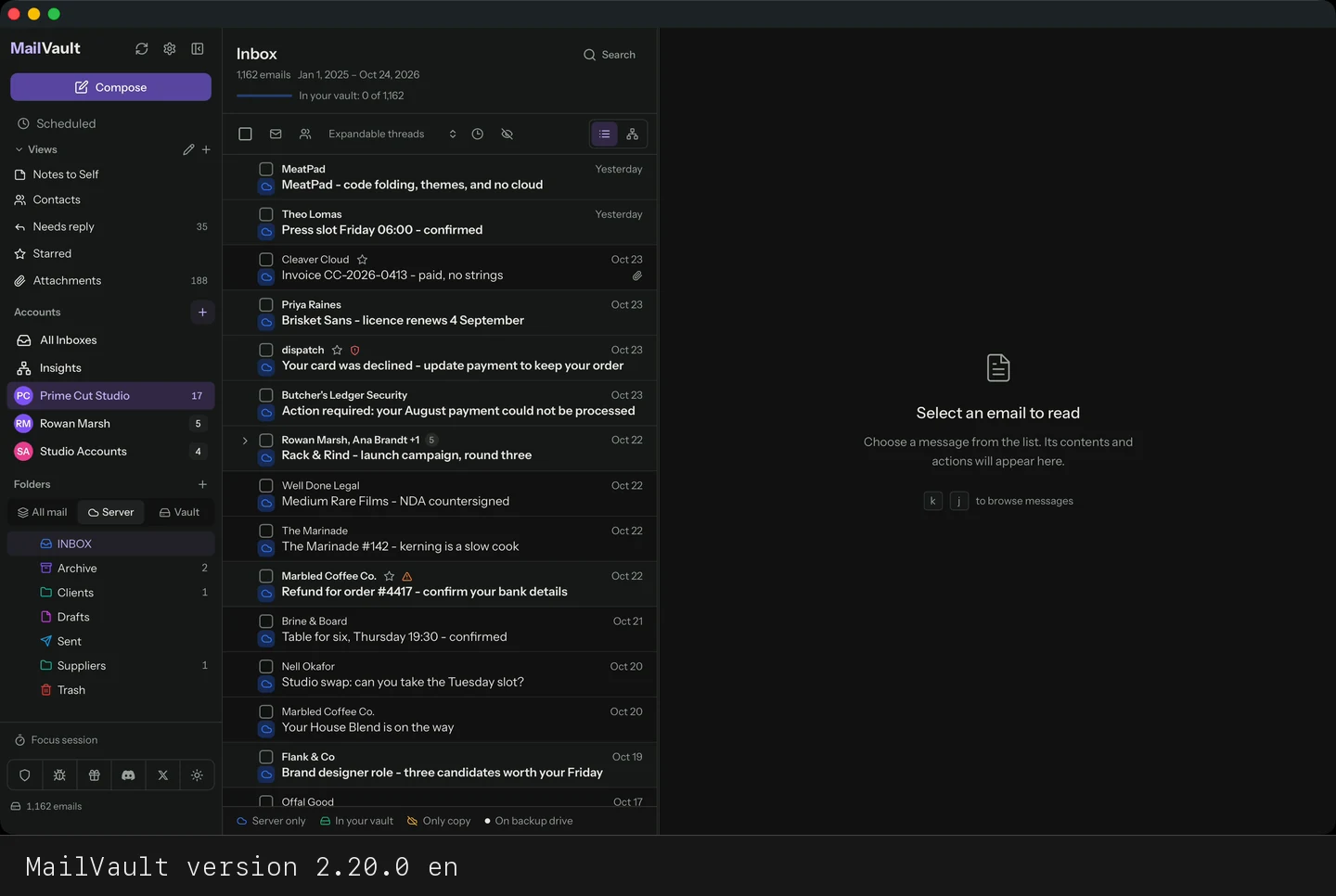
Anything that fails the check stays on the server, and the result tells you how many emails were kept. When the run is done the Server count drops by what was removed, and the same emails are listed in the Vault view.
Archive & Delete from the Server view: select a year, confirm, and the Vault keeps the emails.Archive, Back up & Delete: the same flow with a second copy on your backup drive.
How do I archive and delete a whole account from Settings?
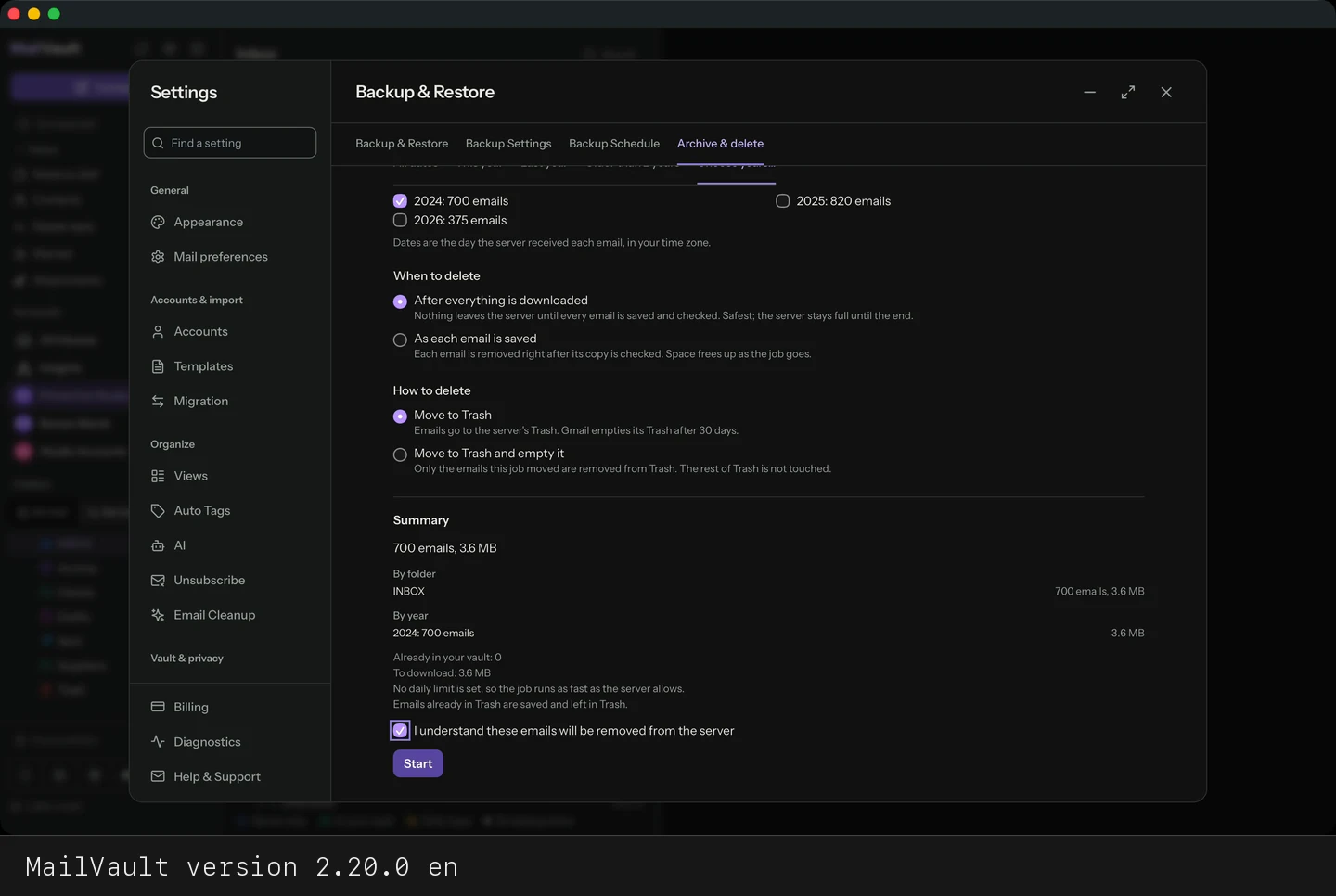
Open Settings → Backup & Restore → Archive & delete. Two Premium jobs work on a whole account at a time: Archive, back up & delete from server (vault and backup folder) and Archive & delete from server (vault only). Press Set up, choose what to remove, read the summary, tick the confirmation and press Start.
Archive & delete from server in Settings: scope, summary, start, and the Vault keeps everything.Archive, back up & delete from server in Settings, with the backup folder as the second copy.
Why use Settings instead of selecting messages
It scopes the whole account. Tick folders (or the whole account) and choose all dates, this year, last year, older than 2 years, or the years you pick. Nothing to select by hand.
You see the cost first. The summary lists how many emails and how many megabytes, by folder and by year, how many are already in your vault or on your backup drive, what is left to download and, when you set a daily download limit or use Gmail, about how many days it will take.
You choose the risk. Delete after everything is downloaded and checked (safest), or as each email is saved to free space as the job goes.
You choose how it leaves the server. Move to Trash, or move to Trash and empty it. Emptying removes only the emails this job moved and leaves the rest of Trash alone.
It runs in the background. Keep using MailVault while a progress panel follows the job. You can pause, resume or cancel, the job keeps running after a restart, and it waits for your daily limit or Gmail’s limits instead of failing.
Every copy is checked before an email is removed. Emails that fail the check stay on the server, and the panel lists why.
Good to know: emails with several labels are removed from all of them, and emails already in Trash are saved and left in Trash. For a quick clean-up of a few years, the bulk route is faster. For a whole mailbox, Settings is the safer, more controllable way.
Step by step: archive and delete from the server, with screenshots
You need MailVault Premium. For the backup variants, set a backup folder first (Settings → Backup & Restore → Backup Settings). The screenshots use MailVault’s fictional demo mailbox.
Settings has more control and a summary before you commit, which is why we recommend it for whole accounts. The bulk route is quicker for one year. Compare both in the Settings article.
How does backup and restore work?
MailVault exports your emails as a ZIP archive containing all .eml files plus a manifest.json that maps emails to accounts by email address (not internal IDs), making backups portable across different installations. You can choose to export all emails or archived only. Importing is idempotent — if an email already exists locally, it won't be duplicated. If a backup contains emails for an account you haven't set up yet, MailVault creates it automatically (you just re-enter the password in Settings).
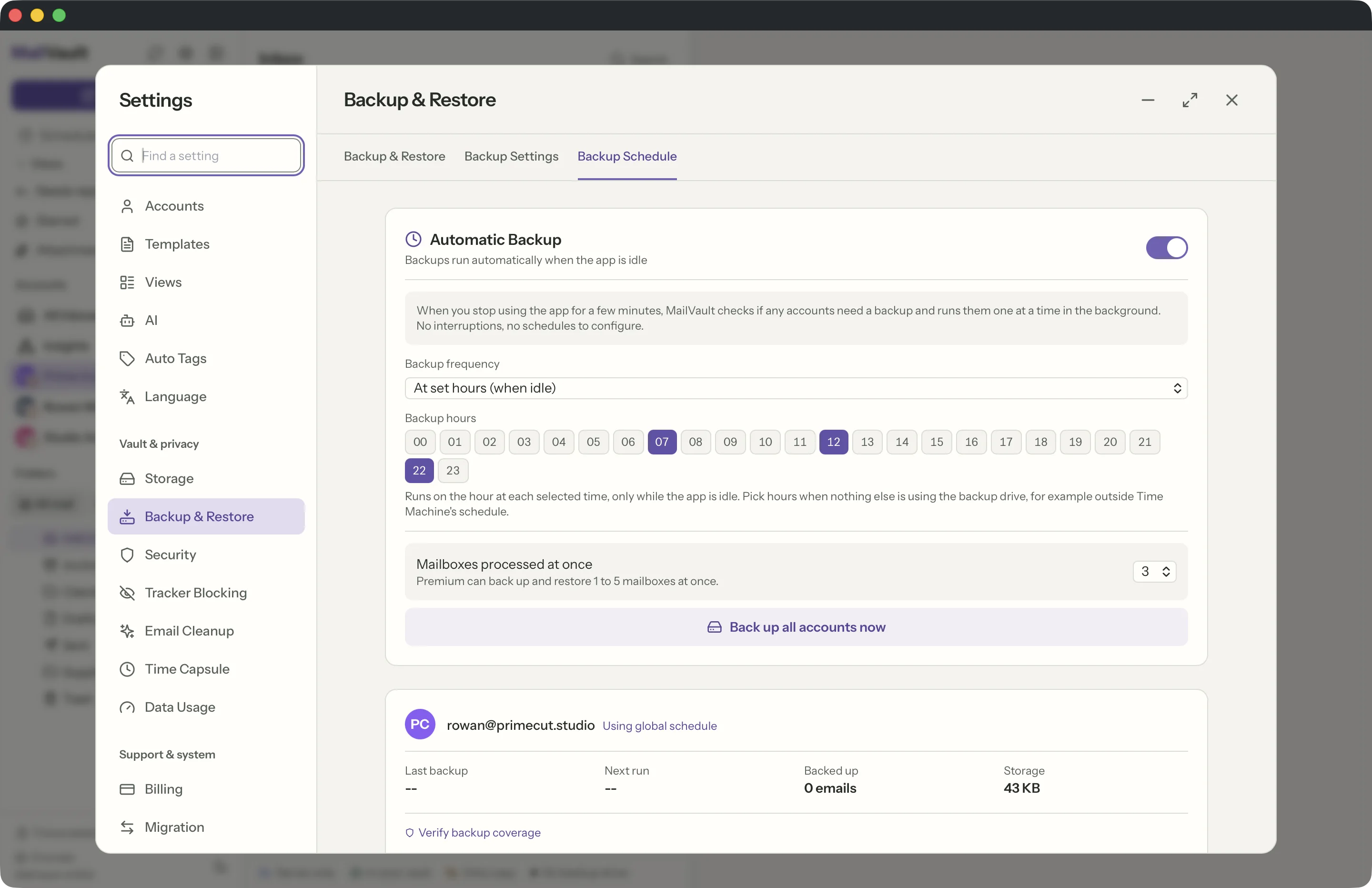
Yes, with Premium. Settings → Backup & Restore → Backup Schedule offers four frequencies: every hour, once a day, once a week, and At set hours. Choose At set hours and a grid of all 24 hours appears; tap the ones you want, say 07, 12 and 22, and MailVault backs up on the hour at each of them and never in between. Every frequency runs only while the app is idle, so a backup never starts under your hands.
Set hours are meant for a vault or backup mirror on an external drive that something else already uses on its own schedule, Time Machine most often: pick the hours that drive is free. A selected hour that comes round while MailVault is busy is skipped rather than caught up later, so the next selected hour is the next attempt.